mintlify-community organization, the GitHub App is automatically configured and managed by Mintlify. You can use the web editor to make changes to your documentation. If you want to work on your documentation locally, clone the repository to your own organization and update your Git settings to use your own repository.
Install the GitHub App
You must have organization ownership or administrator permissions in a repository to install the app. If you lack the necessary permissions, the repository owner must approve the installation request.
Permissions
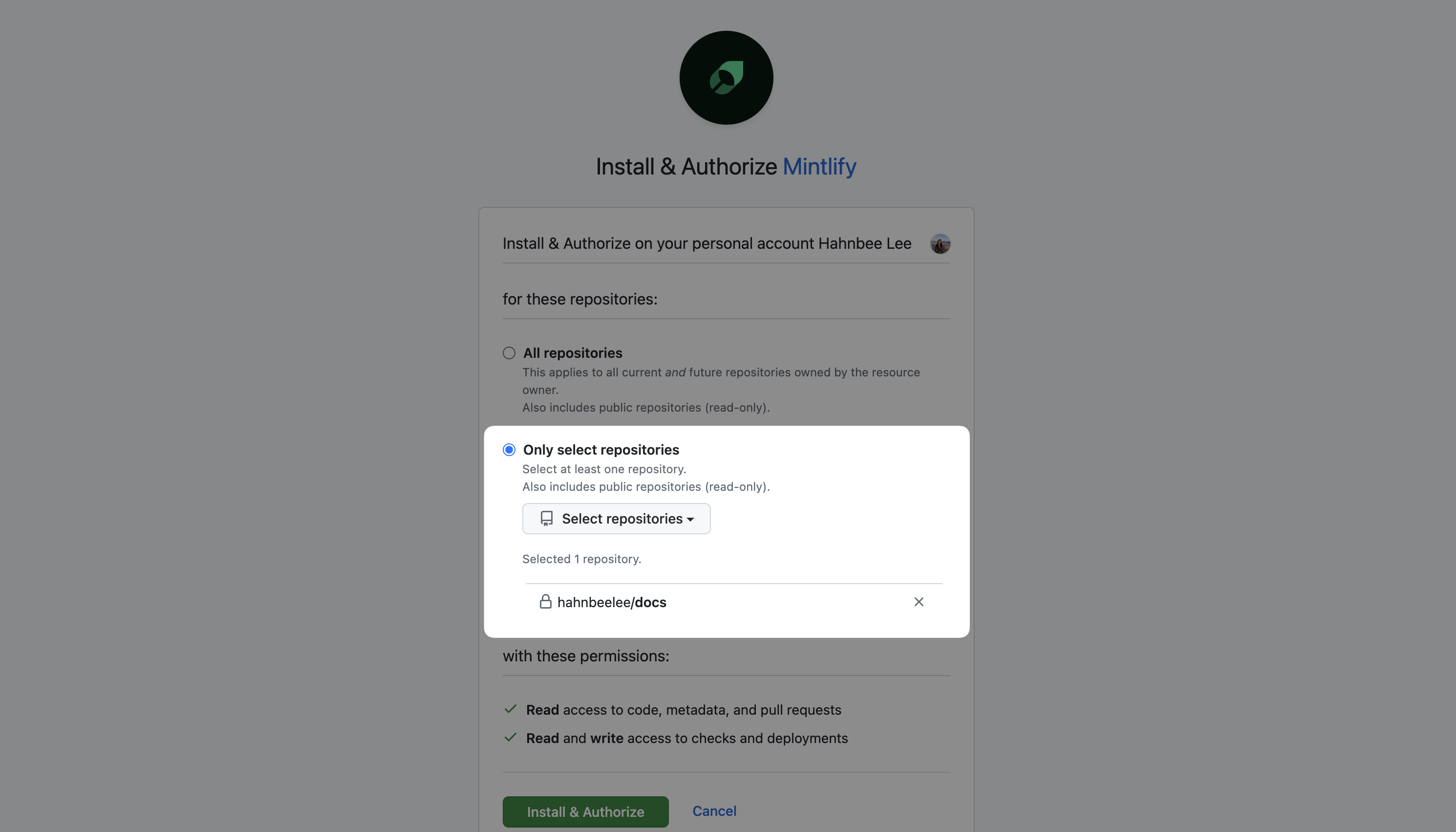
When you install the GitHub App, grant the following permissions. Read permissions:metadata: Basic repository information
checks: Create status checks on pull requestscode: Read file changes when you commit to your docs branchdeployments: Generate preview deployments for pull requestspull requests: Create branches and pull requests from the web editor
The app only accesses repositories that you explicitly grant it access to. If you have branch protection rules enabled, the app can’t push directly to protected branches.
Manage repository access
When installing the GitHub App, you can grant access to all of your repositories or specific ones. We recommend only granting access to your documentation repository and any repositories that you want to provide as context for the agent. You can modify this selection anytime in your GitHub App settings.Configure docs source
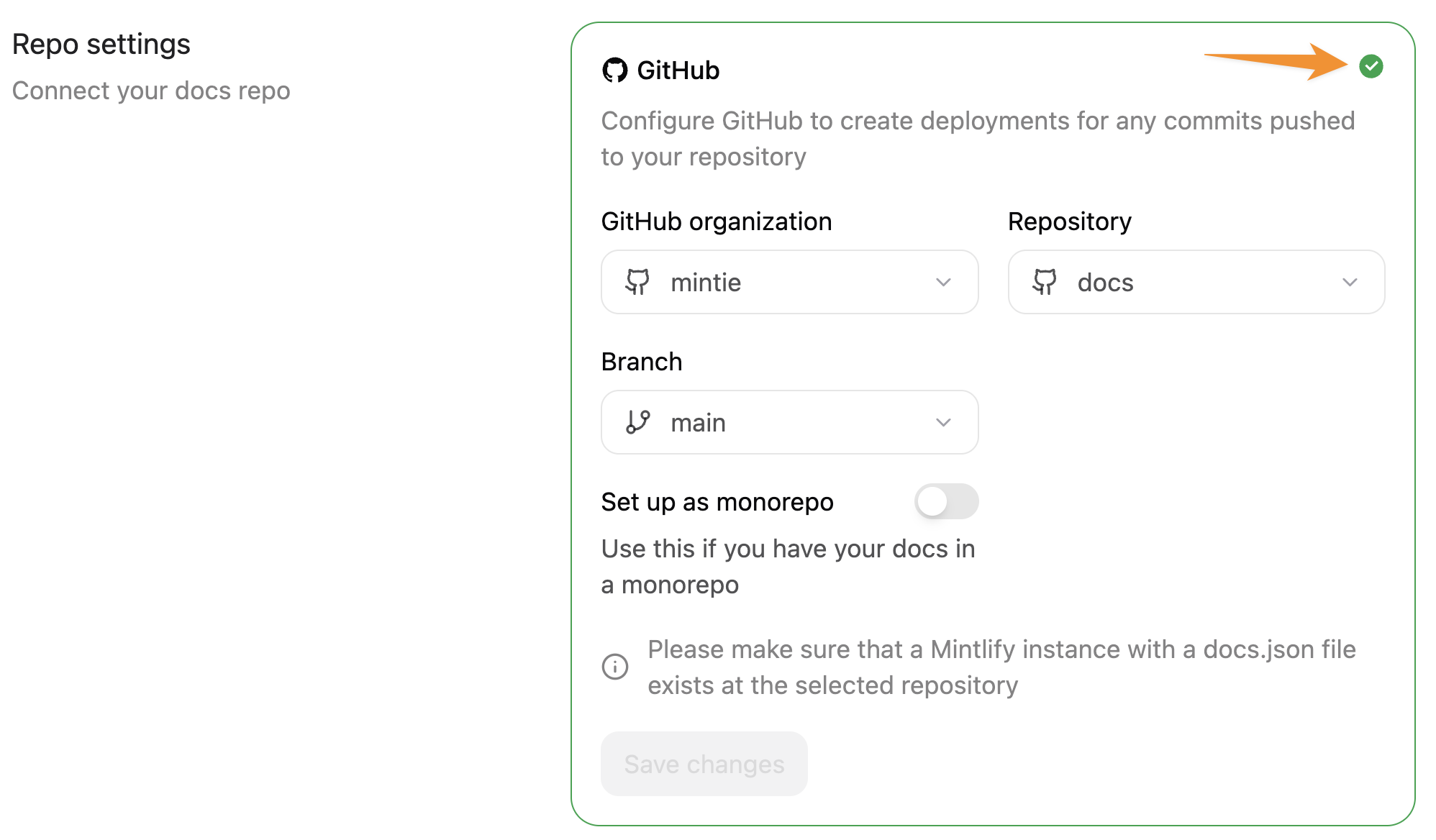
Change the organization, repository, or branch that your documentation builds from in the Git Settings section of your dashboard.GitHub Enterprise with IP allowlists
If your GitHub Enterprise Cloud organization has an IP allowlist enabled, you need to add Mintlify’s egress IP address (54.242.90.151) to your allowlist for the GitHub App to function properly.
Follow GitHub’s documentation to configure your IP allowlist.
Troubleshooting
Deployment not triggering automatically
If pushes to your repository don’t trigger deployments, check the following possible problems.Verify GitHub App installation
Verify GitHub App installation
Check that the correct repository has the app installed.
- Go to GitHub App settings in your dashboard.
- Check that your repository is on the active app installations list.
Check deployment branch
Check deployment branch
Ensure that you’re pushing to the correct branch.
- Go to Git Settings
- Verify the branch in your dashboard matches the branch that you’re pushing to.
GitHub App connection issues
If you encounter problems with the GitHub app, resetting the connection can solve most problems.1
Uninstall the Mintlify app through GitHub.
- In GitHub, go to installations and select Configure next to the Mintlify app. Scroll down and select Uninstall.
- Go to Authorized GitHub Apps and select Revoke next to the Mintlify app.
2
Reinstall the Mintlify app.
- In your Mintlify dashboard, go to Git Settings and install the GitHub app.
- Authorize your account in the My Profile section of your dashboard.
Feedback add-ons are unavailable
If you cannot enable the edit suggestions or raise issues options in your dashboard and your repository is public, revalidate your Git settings.1
Navigate to Git Settings
Go to Git Settings in your dashboard.
2
Revalidate your settings
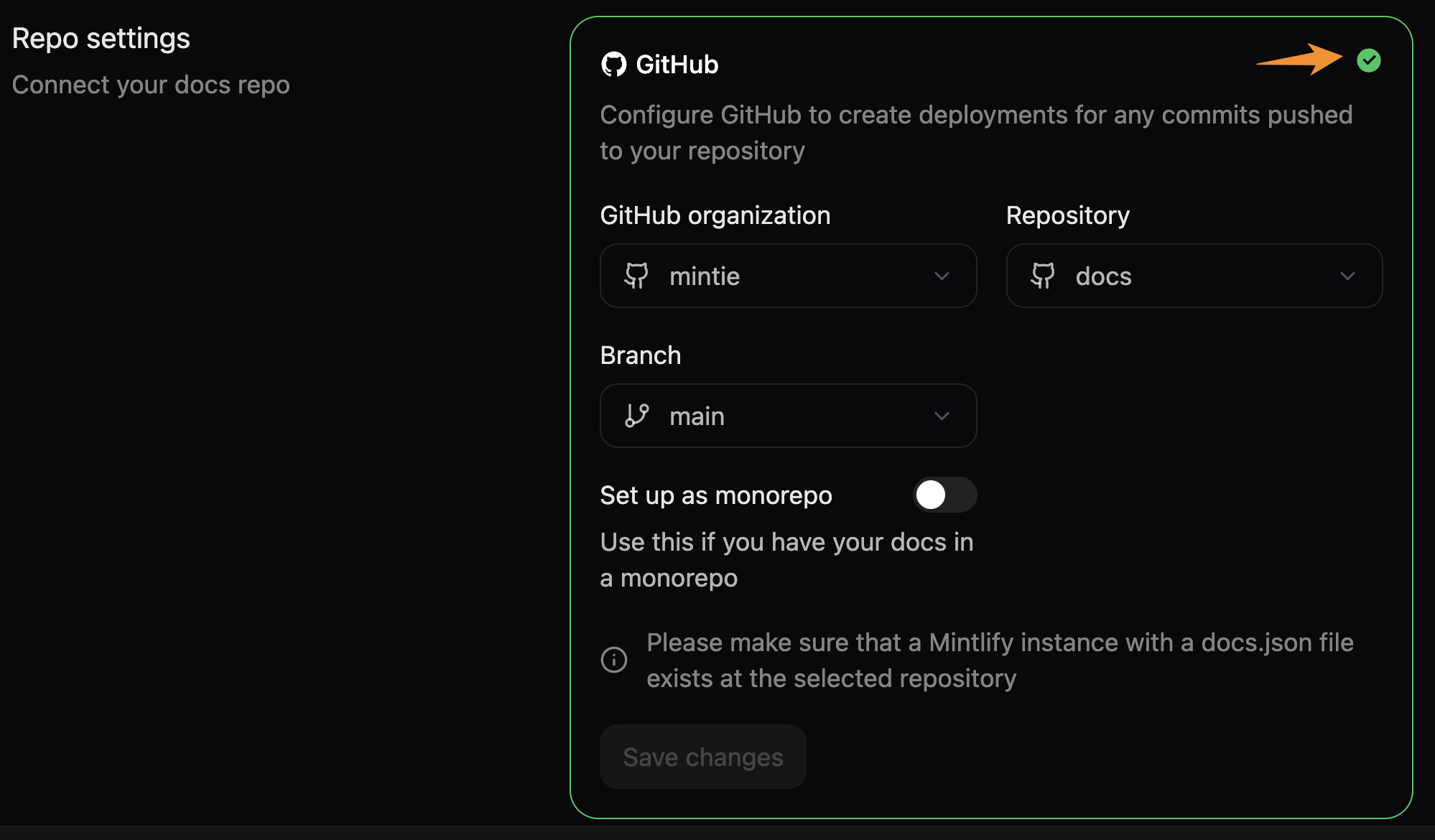
Click the green check mark in the corner of the Git settings box to revalidate your repository settings. This forces an update to your repository settings to reflect whether your repository is public or private.